Bring charging records into your operations with the Admin API
If your team copies charging records into another system every week, the useful next step is a repeatable import. Start with one workspace and a small period you can check against the EVCharge.mobi portal. Once those records agree, you have a foundation for an internal dashboard or another operational workflow.
The Workspace Admin API provides structured charging-session data through a workspace-bound token. This guide focuses on reading records: a first integration does not need permission to start chargers, change tariffs or send invitations.
Give the integration the access it needs
In the correct workspace, open Workspace Settings > API access. A human administrator with workspace-edit permission creates the token; another API token cannot create it. For this workflow, select reports:read and review the complete scope selection before saving.
API access is included in every plan, including Free, but the workspace's host must enable the Admin API. Current permissions and entitlements limit which scopes can be granted, and report-history limits still apply. API availability does not make every export or platform feature available on every plan.
Give the token a name that identifies the integration. Store the credential when it is shown: the plaintext appears only once. Keep it in your integration's server-side secret store, outside browser code, source control and logs. A token belongs to one workspace; use a separate credential for another workspace rather than adding a workspace ID to requests.
The Admin API overview explains token expiry, revocation and rotation. To replace a credential, create and verify its replacement before revoking the old one.
Read a small, explicit period
Start with a recent period containing completed sessions that you can inspect in Reports. Use the same workspace, date boundaries and optional site or charger filters in your comparison.
This illustrative request selects completed sessions that started during one UTC day. Replace the dates with a period inside your account's available history. Your server adds its stored token in the Authorization: Bearer header.
GET /v2/admin/reports/data
Host: api.evcharge.mobi
Add these query parameters using your HTTP client's query builder:
from:2026-10-01T00:00:00Zto:2026-10-02T00:00:00Zactive:falselimit:100
The start boundary is inclusive and the end boundary is exclusive. If your reporting day follows a local timezone, calculate its boundaries with the correct UTC offsets, including daylight-saving changes. A session crossing midnight is selected by its start time; this request does not split its energy between calendar days.
The API accepts ranges up to 90 days, subject to your account's history allowance. A shorter permitted window is a better first check than assuming the maximum range is available.
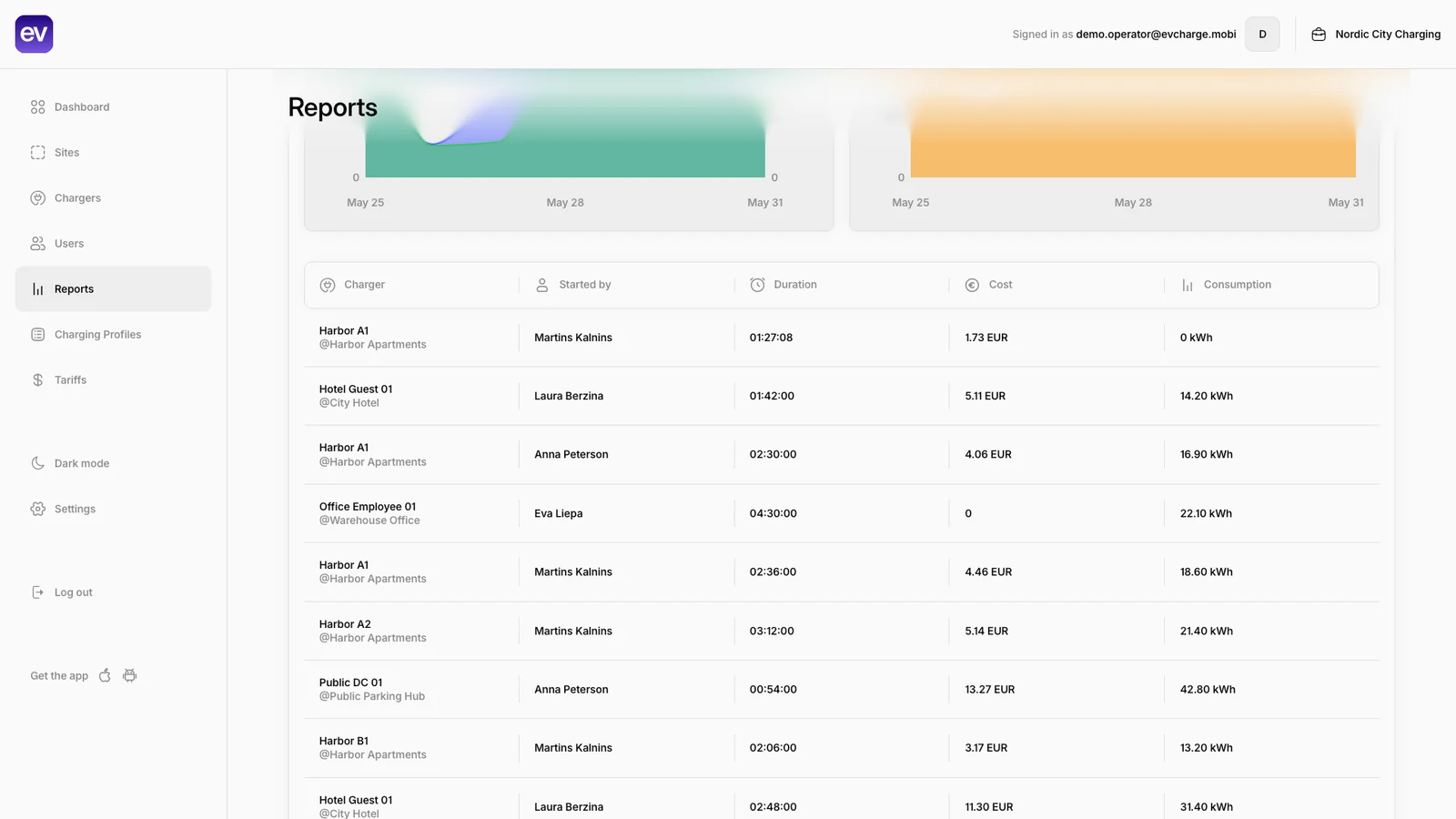
Public demo, with illustrative names and values. Use Reports to compare a few sessions from your chosen period. Match the charger, duration, energy and currency; the screenshot is a portal view, not an API response. Open it at full size to inspect the columns.
Finish every page before calculating totals
The response includes items, pageTotals, page.nextCursor and the selected range. A page contains at most 100 records. If nextCursor is present, pass it back unchanged as cursor, keeping the same filters, and continue until it is null.
pageTotals describes only that page. Treating it as the whole period can quietly omit sessions. In your receiving system, use the session id to update an existing record rather than creating duplicates when you repeat an import.
Read units explicitly. energyWh is watt-hours; divide by 1,000 when displaying kWh. Costs are grouped by currency and distinguish net, tax and total. Keep currencies separate. A charging cost record does not by itself prove that a payment settled or that a reimbursement is due.
Before automating the import, compare several records and the complete period totals with the portal. Check timezone boundaries and filters first if the counts differ. Save only the fields your workflow needs and restrict access to records containing user information.
Make repeated imports predictable
Build error handling around HTTP status and documented codes, rather than matching English display text. Check the response and error reference for authentication, scope, history and validation failures. Respect Retry-After when rate limited; do not treat an unsuccessful response as an empty report.
Start with a scheduled read in your own integration and recheck a recent window when records may still change. This is an integration pattern to implement and verify, not a built-in promise of a complete historical synchronization.
If the receiving system needs a file instead, the separate export endpoint requires reports:export and the relevant export entitlement. CSV/PDF exports have a 2,000-row limit. The endpoint reference documents filters and limits so you can choose deliberately between paginated data and an attachment.
Your first useful result is small: a permitted set of charging records, imported once and reconciled with EVCharge Reports. Use that verified read as the starting point for the operational task you want to stop repeating manually.