Get a charging problem to the right support channel
“Charging did not start” is a useful warning, but it leaves a support team with several questions. Which connector was selected? When did it happen? Was the driver waiting for authorization, a charger response or a new meter reading? A short, specific report gives the person helping you a starting point.
For an operator using EVCharge.mobi, the practical routine is to locate the affected session or operation, collect the relevant details, then keep the investigation in one support conversation. The available channel depends on how your portal is configured. Start there before creating duplicate messages in several places.
Find the support route available to you
Open your EVCharge portal and look for Support or Help. On portals with ticket support enabled, Support provides your ticket list and a way to create a request. A Help link may instead take you to the support page configured for that portal. If neither option is available, confirm the correct channel with your platform contact.
Ticket access belongs to the signed-in customer and the portal hosting the conversation. A workspace administrator is not automatically a support administrator for everyone using the platform. Use your own conversation to provide the evidence; do not assume another operator can see it simply because you share a workspace.
For a driver using the mobile app, Account > Help & Information is the starting point for the configured help resources. An operator helping that driver can collect the charger and session details in the portal first, so the report refers to the same event.
Turn the problem into a useful first message
Before submitting, use the charger and session views to collect:
- The workspace and charger name, plus the connector number.
- The date, time and timezone of the attempt.
- The session or operation ID, when available.
- The exact visible error and the result you expected.
- What you already tried and what changed afterwards.
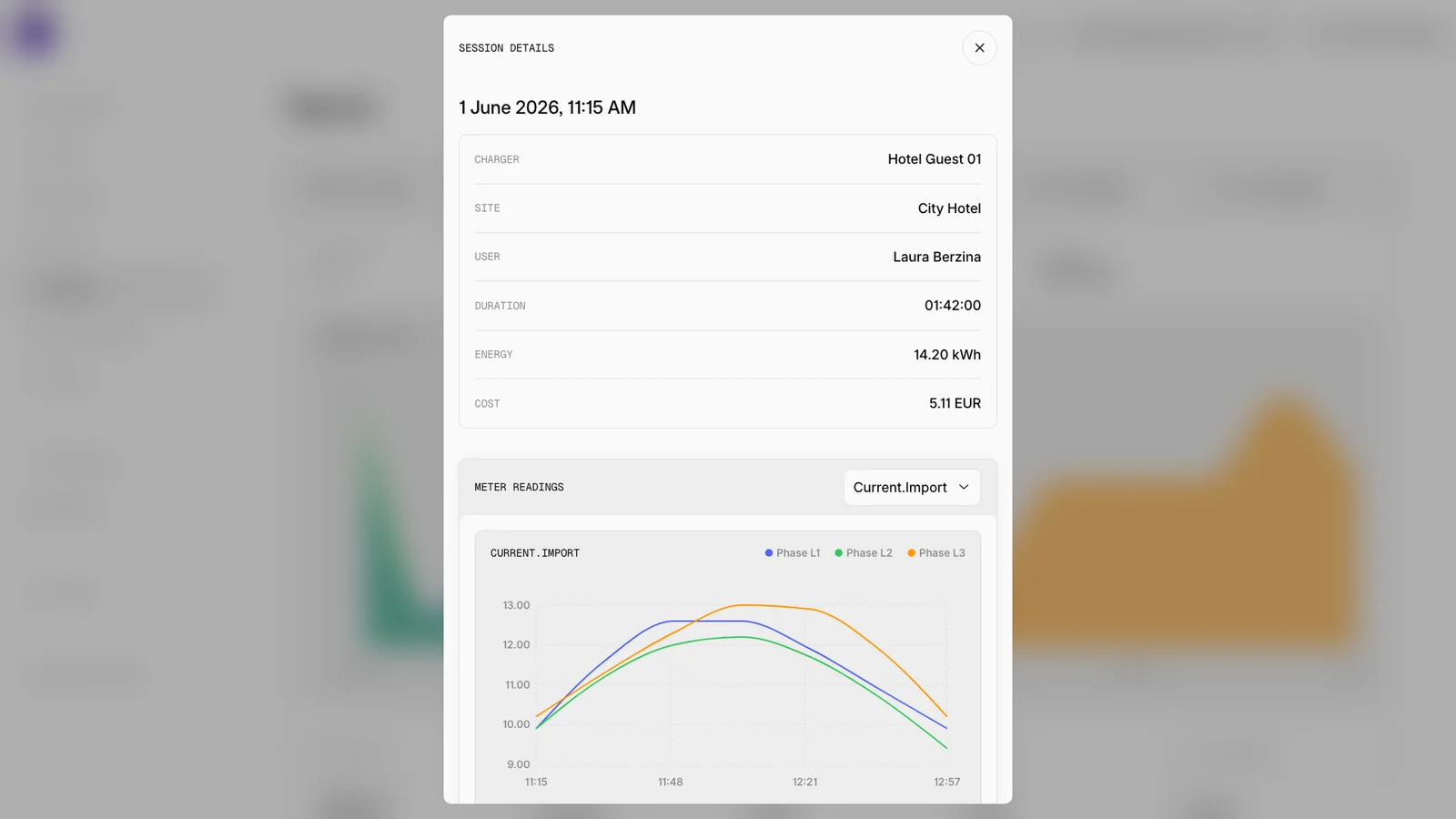
Public demo of session details: use the time, charger and site to identify the event before contacting support. The names, readings and amounts are illustrative. Add the connector number and timezone separately, and remove unrelated personal information from your own screenshot. Open the image at full size for a closer view.
For example, a useful hypothetical report might say: “Connector 2 showed Available at 09:10 local time. I selected Start, received the displayed timeout, and refreshed once. No session appeared.” Replace every detail with your actual observation. A timeout alone does not establish whether a command reached the charger.
Use the start-and-stop guide to check the ordinary sequence, and the troubleshooting guide for relevant checks. If the issue concerns a payment, distinguish an authorization from a completed charge and include the visible payment state. Avoid repeating payment or charger commands just to obtain a clearer screenshot.
Create the request and keep the evidence together
Where the ticket form is enabled, choose the request type and the category or issue offered by the form, then add a clear subject and description. A feature request follows a different path from a charging fault; choose the option that describes your need.
A screenshot can help when it shows the exact error or unexpected state. Review it before attaching it. Remove passwords, access tokens, charger connection credentials, full card details and unrelated personal information. Diagnostic logs visible to an authorized administrator can still contain information unsuitable for sharing publicly.
After submitting, keep the ticket reference. Add follow-up observations to the same open conversation so support can compare the original attempt with later changes. If the ticket is closed and the portal prevents a reply, use the support route shown there rather than assuming the form will reopen it.
Understand replies and email review
On enabled portals, ticket events can appear in the notification bell. Open the relevant notification or ticket to read the conversation. The bell refreshes periodically while the browser tab is visible; it is not a promise of an immediate reply or a general alarm for every charger fault. Check the ticket itself when following an investigation.
Email conversations require the portal’s email integration to be enabled and configured separately. Ordinary new mail from a recognized customer can create a ticket; mail from an unknown sender or a different requester can wait for review. Automated notices and bulk messages can also be held for review, even when the sender is registered. A message awaiting review does not yet mean a ticket or acknowledgement has been created.
For an accepted email conversation, reply within the existing thread from the same requester address. Keep its ticket reference. Approval of an enquiry does not grant portal access or permission to join someone else’s ticket, and email processing does not carry a guaranteed response time.
The useful result is one identifiable problem, one set of evidence and one place to follow the response. Begin with the affected charger in EVCharge, then use the support channel your portal provides to keep that context attached to the conversation.
Bring your chargers online today.
Create a free CPO Portal account and connect your first OCPP charger in minutes.