Add chargers while managing your site’s available power
More parking spaces can need charging before a site is ready for a larger electrical supply. For an apartment building or workplace operator, the useful question is how to bring another charger into a controlled operating plan with the capacity already available for charging.
EVCharge.mobi’s Power Management lets you group compatible chargers into charge pools, set current limits and inspect whether chargers accept the resulting profiles. Start with one verified pool. That gives you a repeatable setup to review before expanding across the site.
Start with the capacity available for charging
Ask your qualified installer to establish the current available for charging, taking the site’s wiring, phases, protection and other electrical demand into account. A software setting does not replace electrical design or protective equipment, and load management cannot guarantee that a supply upgrade will never be needed.
Use that agreed capacity when configuring EVCharge.mobi. The pool limit is entered in amperes. Do not copy a charger’s advertised kilowatt rating into that field or assume the whole building supply is available to vehicles.
If you have not connected your first charger, follow the first-charger setup guide in the CPO Portal. Confirm its site and connector information before working on a pool. Check your account’s plan and limits as well: access to power management does not mean the account can contain an unlimited number of chargers or connectors.
Build one pool you can verify
Open Sites, select the site and open Power Management. Choose Load power data, then Create empty pool. Give the pool a recognisable name, enter the agreed current limit and assign the charger you will use for the first check.
The interface also lets you set charger priority and organise smaller pools beneath a parent pool. A child pool cannot have a higher limit than its parent. Use that hierarchy where it matches the site’s actual arrangement; begin with a simple structure you and the installer can understand.
Choose Save charge pools and confirm that saving succeeds. Changes left in the editor are not a completed configuration.
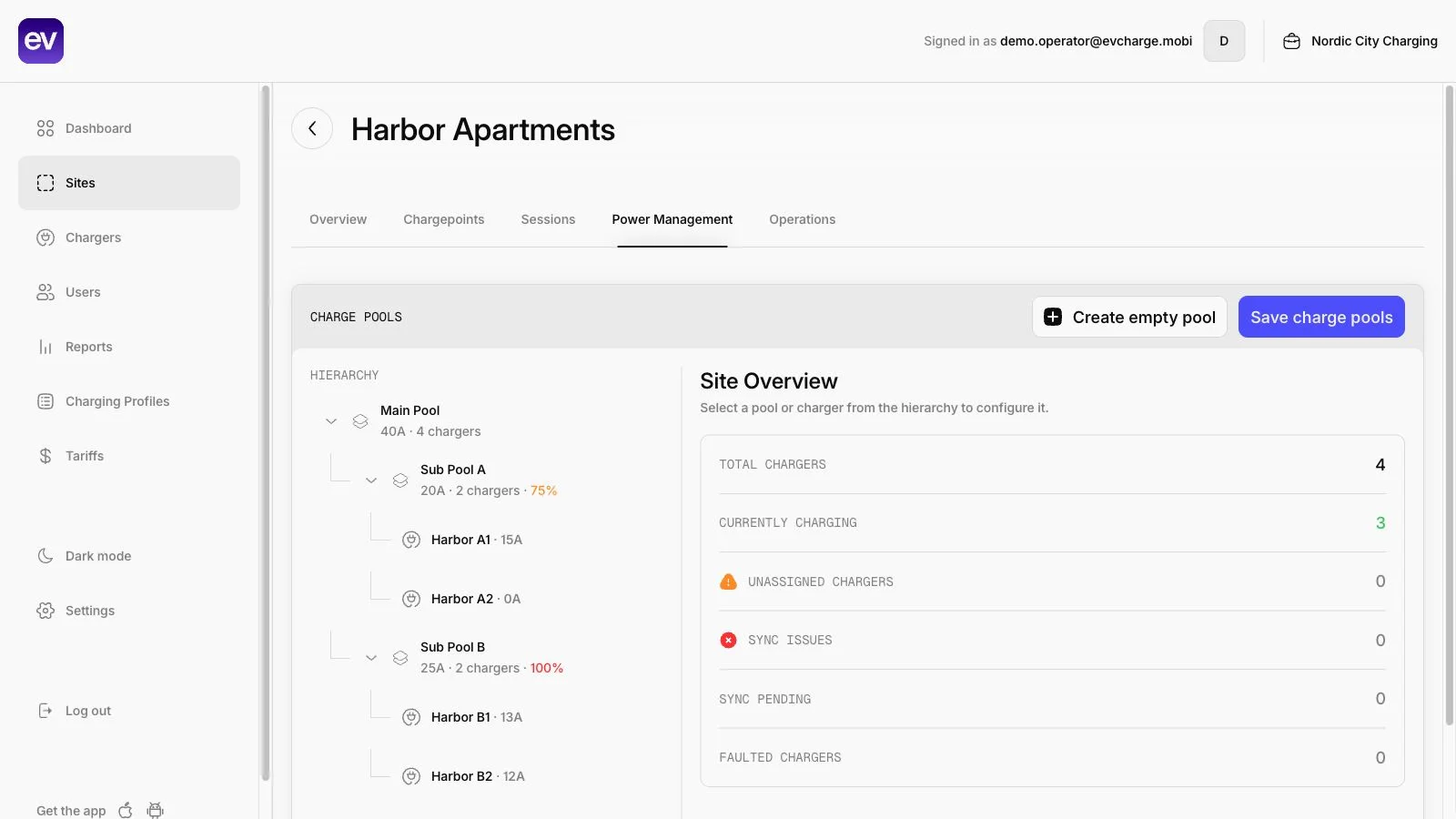
Illustrative demo data, not a customer installation or recommended electrical limits. The hierarchy shows which chargers belong together; the summary helps identify pending updates or problems. Select the image to inspect it at full size.
Check compatibility before relying on a limit
A charger being online does not establish that it supports the charging profiles needed for this workflow. Power Management distinguishes Supported, Not supported and Not verified Smart Charging capability.
Resolve an unverified or unsupported result before depending on that charger in the pool. A device that only supports starting and stopping charging is not equivalent to one that accepts current-limiting profiles. Hardware, firmware and configuration matter; a manual compatibility setting is not a substitute for observing the actual charger.
During an authorised, supervised test, connect a suitable vehicle and check the profile result:
- Accepted: The charger acknowledged the limit. Check its reported behaviour during the session.
- Pending: The result is not confirmed. Check connectivity and wait for the response before relying on it.
- Rejected: Inspect the charger logs and resolve the refusal or reported failure.
An accepted command is useful evidence, but it is not an electrical measurement. Review the charger’s reported session information alongside the installer’s checks. Actual power can also be lower than a configured limit because of vehicle demand or other restrictions.
Account for changing building demand
Where a supported external meter is configured, Power Management can use its data to adjust the available site current. The setup includes the meter provider and identifier, how its reading should be interpreted, reserved current, a fallback limit and how long a reading remains valid.
The reading’s meaning matters. Available headroom, non-charging building demand and total demand including vehicles are different measurements; choose the mode that matches the meter installation. Confirm compatibility and the correct interpretation before enabling it.
Inspect Last seen and Effective limit. If readings stop arriving or become too old, the configured fallback becomes important. Agree that fallback with the installer and include loss of meter data in the operating plan. Do not assume every external meter is supported.
Expand after the first result is clear
Once the first charger’s configuration and behaviour are verified, add another compatible charger within your account limits. Save the revised pool and repeat the check with the intended combination of vehicles. Keep notes on the hardware, firmware, pool settings and any unresolved results.
The Power Management guide provides the setup steps and troubleshooting checks to keep beside the portal. A useful first success is a saved pool with understood limits and verified charger behaviour. That gives you a concrete basis for extending EVCharge.mobi across the site.
Bring your chargers online today.
Create a free CPO Portal account and connect your first OCPP charger in minutes.