Make monthly charging reports part of your routine
Month-end charging administration often starts with the same questions: which workspace should you export, what period does it cover, and who needs the file? Answering those once gives you a better starting point than rebuilding the same export every month.
In EVCharge.mobi, an operator can save a monthly session-report schedule with a recipient, CSV or PDF format, and a send day and time. Start with one workspace and verify one report before relying on the recurring delivery. The aim is a file your team understands and can use in its existing review process.
Check the scope before choosing the recipient
Open Reports in the intended workspace. Use the date range, site, charger and driver filters to inspect relevant sessions and identify a representative completed charge. Check its recorded energy, duration and cost against the information you expect.
The filters need careful interpretation: site, charger and driver selections narrow the on-screen view, but the portal’s download uses the date range across the workspace. The monthly schedule also covers the workspace. Selecting one site in the table does not create a site-only monthly email. Choose a recipient who should receive that workspace’s report.
Monthly scheduling and the selected export format require the appropriate account access. Saving the schedule requires Reports edit permission, and enabling it checks the account’s scheduling capacity. Check the current plan and limits; if you cannot access billing, involve the account owner. A scheduling feature does not remove export limits.
Save one repeatable monthly setup
In the scheduling section of Reports:
- Enable the monthly export.
- Enter the intended recipient email.
- Choose CSV for a file your team can work with in a spreadsheet, or PDF for a readable summary.
- Choose a day from 1 to 28 and the send time.
- Save the schedule.
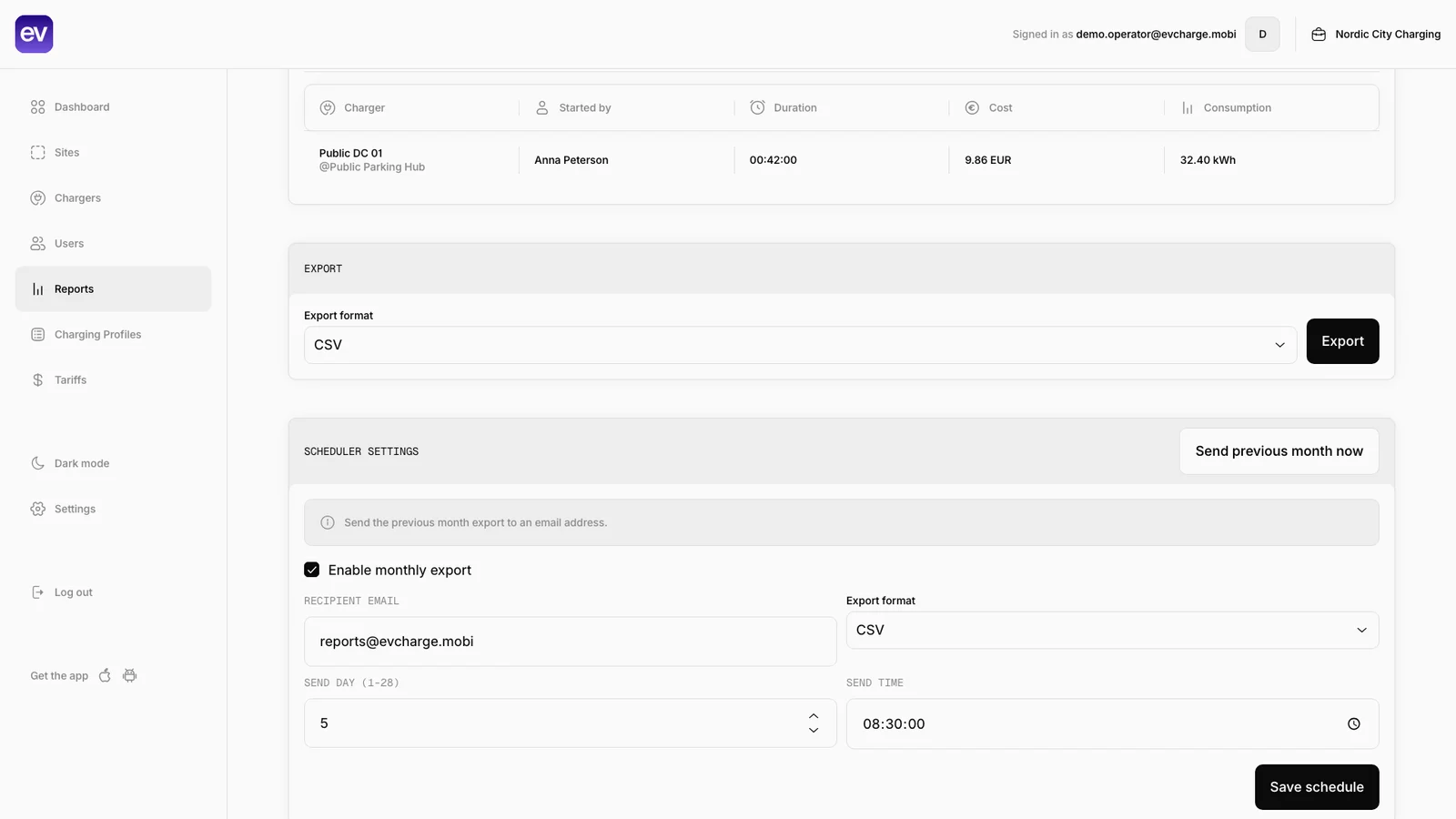
Public demo of Reports and its monthly scheduler. The example recipient, day 5 and 08:30 time are illustrative, not recommended settings. Your task is to choose the recipient, format, day and time, then save. Open the screenshot at full size to inspect the controls; the session shown above them is demo data.
The scheduled period is the previous calendar month, not the previous 30 days. For example, a November run reports October. Scheduling uses a stored timezone derived from the workspace’s first-created site, with UTC as the fallback when no valid zone is available. It is not automatically your browser’s timezone. If you operate sites in several zones, confirm that basis before choosing the send time; the scheduling form does not provide a separate timezone selector.
Verify the first file before depending on it
After saving, use Send previous month now to email a sample to the saved recipient. This uses the saved format and previous-month period; changing the on-screen date range does not change that action. Check the recipient’s inbox and spam folder, then open the attachment.
Confirm the period, workspace coverage and a few representative sessions. Compare recorded energy and cost with the session details, and inspect any still-active sessions rather than treating them as completed charges. A charging report supports review; it does not itself reimburse a driver or settle a payment.
Keep the 2,000-session export ceiling in mind. The background monthly exporter rejects a month above that limit, while portal downloads can contain only the latest 2,000 matching sessions. A file with 2,000 rows therefore needs a completeness check. For a larger workspace, use shorter manual date ranges and agree a reporting process that covers the whole month. Report history is also subject to the account’s access limits. Standard Free accounts include the current and complete previous calendar month, using the workspace’s saved reporting timezone, or the first site’s timezone before setup, with UTC as fallback. Paid plans and explicit account history exceptions retain their configured rolling-day or unlimited rules. The same history checks apply to downloads, Send previous month now and automatic emails; scheduling does not bypass them. Older records are not deleted by this visibility limit.
Keep the routine useful after setup
Check that the first automatic delivery arrives as expected. A configured send time is not a guarantee of arrival at an exact minute. If a report is missing, check the saved recipient, schedule, plan access and spam folder before requesting another copy. Avoid repeated send attempts when someone may already have received the file.
For session-summary work, keep the Reports guide beside your first setup. If the question is instead when electricity was used within a session, use the separate interval-energy reporting workflow. Monthly CSV/PDF scheduling sends a session summary; it does not schedule every meter-data export format. Once one recipient has checked one complete report, you have a practical basis for the next month’s review.
Bring your chargers online today.
Create a free CPO Portal account and connect your first OCPP charger in minutes.