Read your charging session before trying another start
You have plugged in at a private charger and confirmed a start in EVCharge. The screen changes, but the power reading has not appeared yet. Should you try again?
Start by reading the session already on the screen. EVCharge brings the selected connector, session information and incoming meter readings together, so you can check what has been reported before sending another request. This guide is for drivers using a home or workplace charger they have permission to use.
Check the connector before the numbers
Open Chargers, choose your charger and select the connector you are using. Check that the charger is online and that you have private charging access. Plug in as required, then follow the start-charging guide for the option available on your charger.
Make one start attempt and wait for the charger status to change. If you chose a schedule, check its planned start time before expecting energy to flow. An existing active or scheduled session is a reason to inspect that session, rather than create another one.
Read state, power and energy together
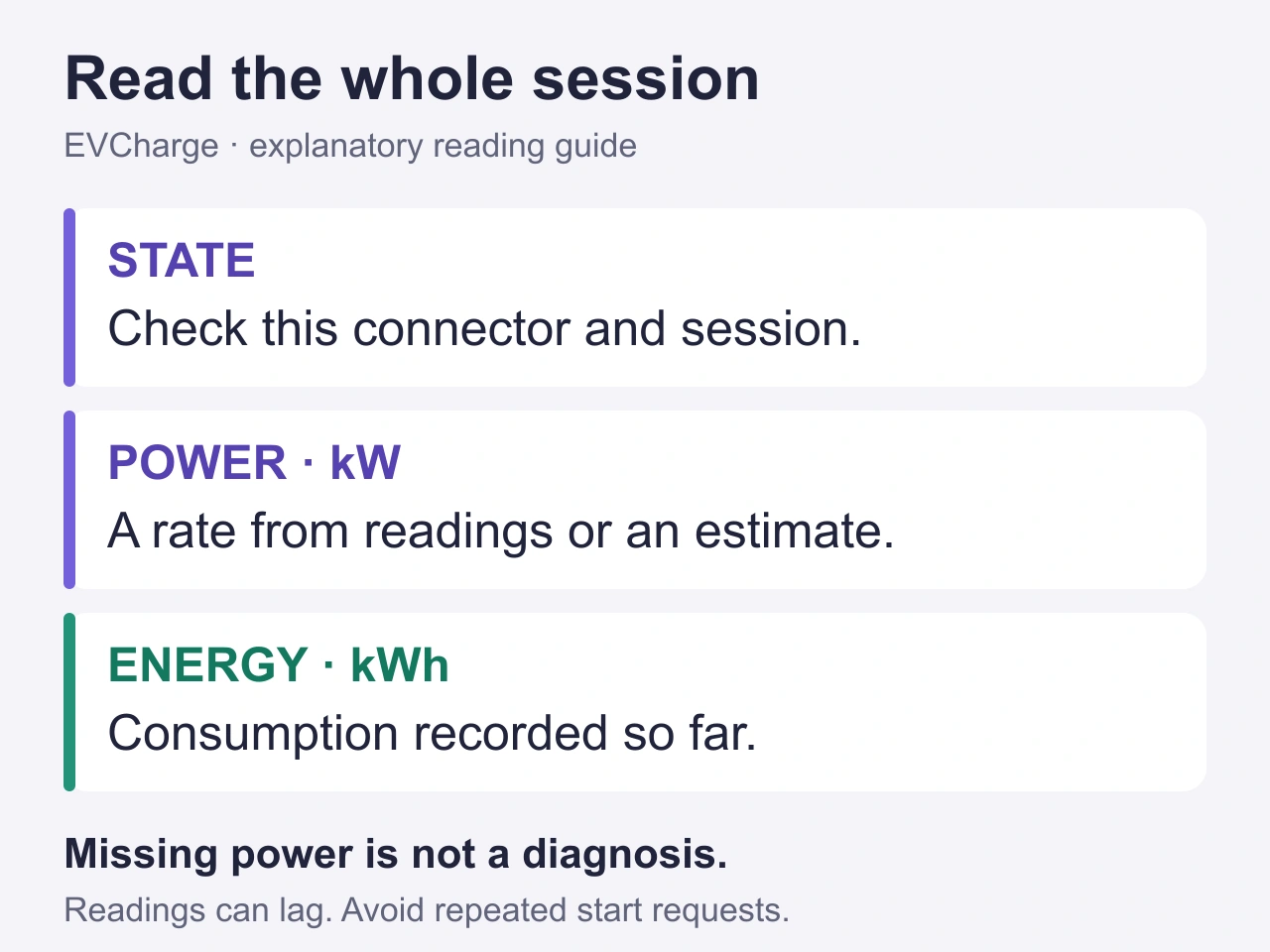
Explanatory reading guide, not an app screenshot. State describes the selected connector and session; kW is a rate, while kWh is recorded consumption. Readings can lag. Open the image for the full-size guide.
Each answers a different question:
- Session and connector state: what has the platform reported about this connector and your session? A session timer records elapsed time; it does not prove that energy flowed throughout that time.
- Power, in kW: what charging rate is represented by the available readings? It can change during a session and may reflect an estimate over a recent interval.
- Consumed energy, in kWh: how much energy has been recorded for the session? Compare it after another reading arrives to see whether recorded consumption has increased.
For an illustrative example, imagine that consumed energy changes from 2.0 kWh to 2.4 kWh between observations. The session has recorded another 0.4 kWh. That difference does not tell you the exact power at this instant, or how much energy reached the battery after charging losses. You do not need a vehicle battery connection to understand the difference between these two units.
In the standard EVCharge active-session layout, unavailable power appears as a dash. A numeric zero is different: it represents a zero value from the available reading or estimate. Neither a dash nor zero, on its own, identifies the cause. Check the session state and any planned charging periods alongside it. Screen details can vary with the installed version and branded application.
Allow for readings to arrive
The charger supplies meter data to the platform. The app cannot turn a missing measurement into a fresh observation just because you reopen the screen.
EVCharge uses a suitable recent import-power reading when available. It can also estimate power from a change in the import-energy register over elapsed time. That fallback helps make the session understandable when the charger supplies energy readings without a usable power reading; it is an average for that interval, not a promise of instantaneous measurement.
For eligible newly started sessions, the platform can request an early meter update. This depends on the charger connection, configuration and support for the request. It does not guarantee when a useful reading will arrive, and it does not mean you need to start the session again.
Choose the next action from what you see
Refresh once, then check the same connector and session. If it is scheduled, review the selected charging periods. If a start is still pending, avoid repeated start requests. If the state or readings remain unclear, use the troubleshooting guide to check the cable, access and visible status.
Keep the charger, connector, time and exact error together if you need help. The support guide explains how to reach the appropriate channel with useful context. Never force a locked cable.
For your next private charging session, keep the charger page open after confirming the start. Identify the session, read power and consumed energy separately, and compare again when new data arrives. That gives you a practical way to follow the charge in EVCharge and a clearer starting point if the operator needs to investigate.