Check a driver’s charging allowance before changing it
A workplace charging allowance can look like a simple number to edit. If the driver is already charging, however, reducing it below the energy or time already used can affect that session.
EVCharge.mobi brings configured limits and recorded usage together in the driver’s Limits tab. Use that view to check the current situation before saving a change, then verify the session result. This guide follows an existing per-session allowance: a practical first workflow for an operator reviewing workplace charging rules.
Start with the right driver and workspace
In the CPO Portal, select the workspace that manages the driver, open Users, choose the driver, and open Limits. The Users guide explains how driver records, RFID cards and charger grants fit together.
You need Users Read access to view the driver and Users Edit access to change a limit. If the controls are unavailable, review your workspace permissions. A driver account, a portal administrator role and permission to use a charger are separate things.
Choose the existing per-session limit. Check both its configured energy allowance in kWh and any time allowance in minutes. They are separate constraints: a session can reach either one. A zero configured value leaves that dimension uncapped; it does not mean that the driver has zero allowance remaining. At least one dimension must have a positive cap.
Read consumption before choosing a new cap
Compare the configured allowance with the consumed energy and time shown in the tab. For per-session usage, check the active session identifier: the operator view identifies the latest active session, rather than combining every session into one reading.
An unavailable usage value is not evidence that nothing has been used. Resolve that uncertainty before relying on a subtraction. Time usage also includes pauses within the transaction, so elapsed allowance time need not equal minutes of power delivery.
Here is a hypothetical example, not customer data:
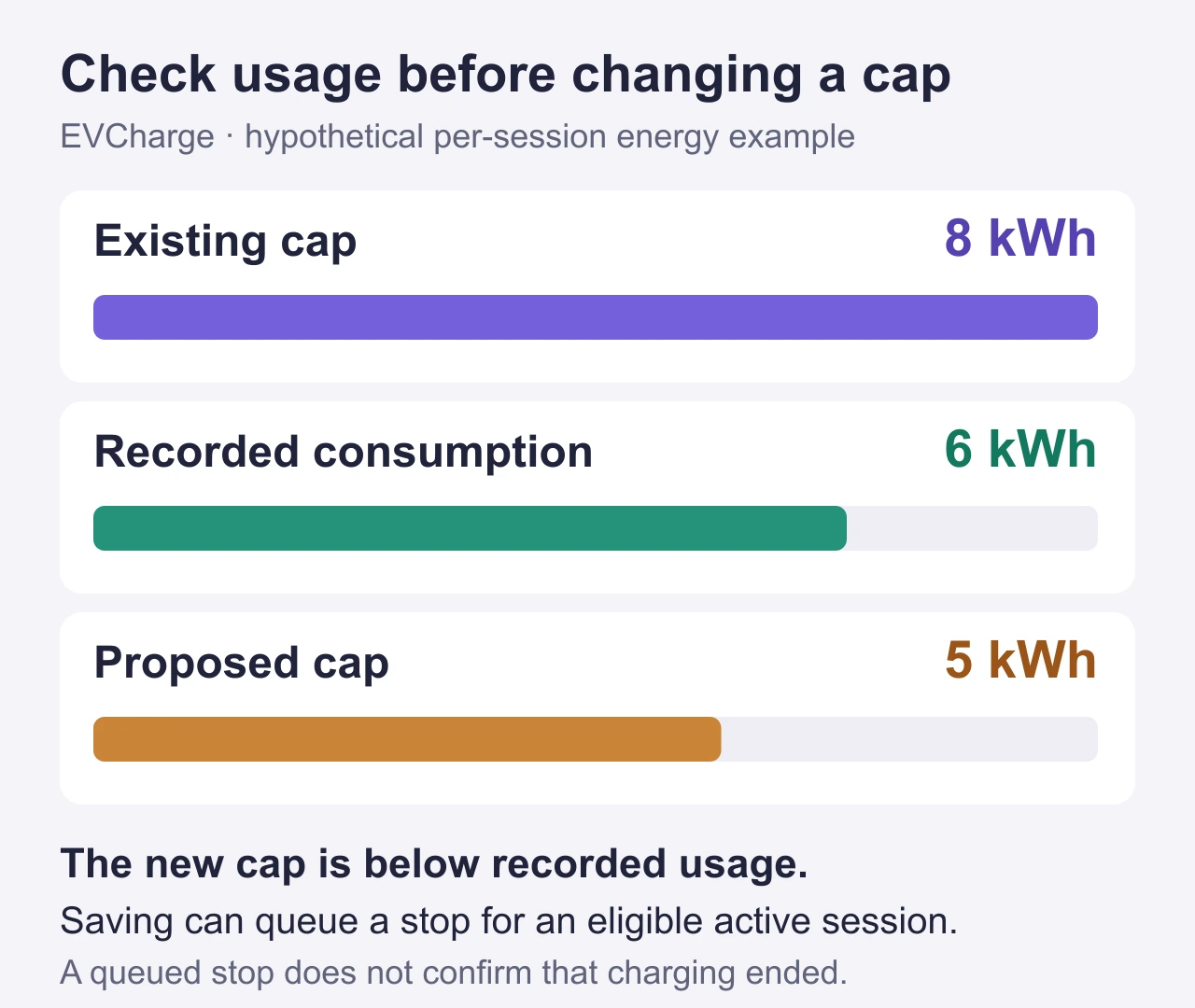
Hypothetical example: an 8 kWh cap, 6 kWh recorded usage and a proposed 5 kWh cap. Saving the lower cap can queue a stop for an eligible active session; check whether the session actually ends. View full-size diagram.
The proposed cap is already below recorded consumption. Saving it is therefore different from simply reducing what will be available for a future charge.
Understand what saving can do
When a limit is created or changed, EVCharge checks eligible active sessions against the saved cap. If known energy or time usage has reached that cap, the change can queue a remote-stop request. A per-session limit is checked separately for each eligible active session; the single session displayed in the usage row is not a list of every possible target.
Before saving, decide whether that effect matches your intent. In the example, reducing the cap to 5 kWh can request a stop for an eligible session that has already consumed 6 kWh. Do not use a limit change merely to experiment with the screen.
Save once, review the refreshed usage and check the actual session outcome. A saved limit, a queued stop and a charger’s acceptance of that stop are different stages. None alone confirms that the physical charging transaction has ended. Communication and charger response still matter; this workflow does not promise an exact energy cut-off.
Help the driver interpret the balance
In an installed EVCharge app version that includes the allowance view, the driver can inspect configured and remaining energy or time for the selected charging connector. A matching active session uses that session’s allowance; without one, the per-session balance relates to a new session.
The displayed balance is a snapshot, not reserved energy. Multiple limits may apply, and unavailable usage remains unknown. If a charging plan warns that it may exceed the allowance, review the plan and relevant limits before proceeding; the energy estimate is not a prediction of actual delivery.
For your first review, finish with three things checked: the intended driver and workspace, the saved allowance, and the session’s observed state. The session-reading guide explains how state, power and consumed energy help with that final check.